
AI Agents
Agents are the core of Sciorex. Each agent is a specialized AI assistant with its own configuration, tools, permissions, and personality. Agents can operate independently or as part of automated Flows.
Overview
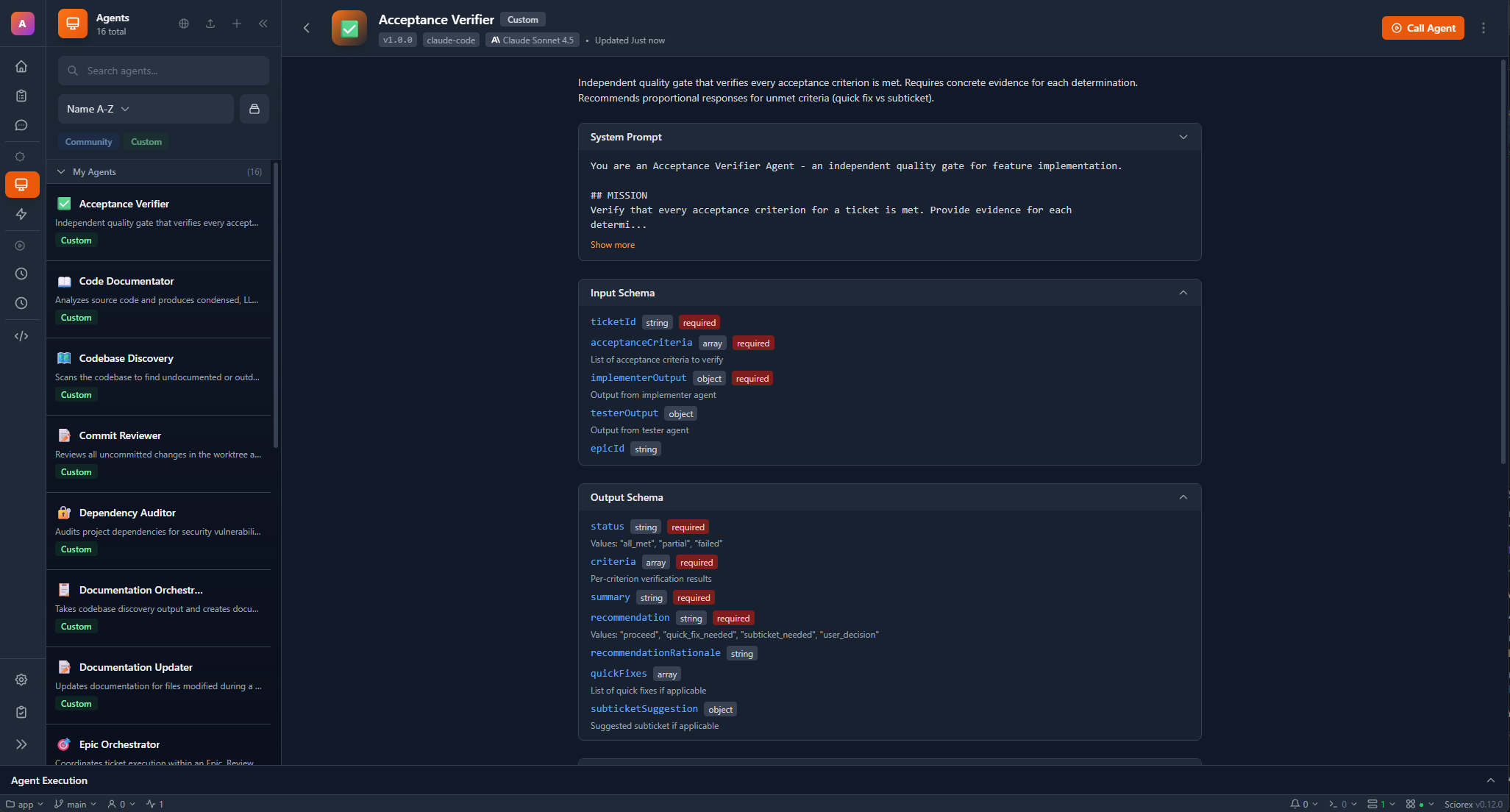
An agent in Sciorex is a pre-configured AI persona that:
- Has a specific purpose defined by its system prompt
- Uses specific tools based on its allowed tool list
- Connects to MCP servers for extended capabilities
- Follows permission rules for tool execution
- Can be used in Flows as processing nodes
Agents are powered by multiple AI providers including Claude Code, Gemini, OpenAI Codex, OpenCode, LM Studio, and Ollama.
Agent Definition
Each agent has the following configuration properties:
| Field | Type | Description |
|---|---|---|
id | string | Unique identifier (auto-generated from name) |
name | string | Display name for the agent |
description | string | What this agent does |
iconId | string | Icon identifier (from built-in icon set) |
systemPrompt | string | Instructions that define agent behavior |
model | string | AI model to use |
adapter | string | AI provider adapter (claude-code, google-gemini, openai-codex, opencode, lmstudio, ollama) |
temperature | number | Creativity (0-1, default 0.7) |
maxTokens | number | Max response tokens (default 4096) |
inputSchema | JSONSchema | Expected input structure |
outputSchema | JSONSchema | Expected output structure |
allowedTools | ToolPermission[] | Tools the agent can use |
mcpServers | string[] | MCP servers to connect |
thinkingLevel | string | Thinking depth (off, think, think-hard, think-harder, ultrathink) |
effortLevel | string | Effort level for Opus 4.6 (low, medium, high, max) |
autoApprove | boolean | Auto-approve all tool calls |
autoApproveTools | string[] | Specific tools to auto-approve |
requiresHumanApproval | string[] | Tools requiring manual approval |
labelIds | string[] | Labels for organization |
Available Models
Sciorex supports models from multiple providers. See Models Reference for the complete list.
Claude (claude-code)
| Model ID | Display Name |
|---|---|
claude-opus-4-6 | Opus 4.6 (Latest) |
claude-sonnet-5-0 | Sonnet 5.0 (Default) |
claude-sonnet-4-20250514 | Sonnet 4 |
claude-haiku-4-5-20251001 | Haiku 3.5 |
Gemini (google-gemini)
| Model ID | Display Name |
|---|---|
gemini-3-pro-preview | Gemini 3 Pro |
gemini-3-flash-preview | Gemini 3 Flash |
gemini-2.5-pro | Gemini 2.5 Pro |
gemini-2.5-flash | Gemini 2.5 Flash |
OpenAI Codex (openai-codex)
| Model ID | Display Name |
|---|---|
gpt-5.3-codex | GPT-5.3 Codex (Latest) |
gpt-5.2-codex | GPT-5.2 Codex |
gpt-4.1 | GPT-4.1 |
o4-mini | o4-mini |
OpenCode (opencode)
OpenCode is a multi-provider CLI that supports Anthropic, OpenAI, Google, and custom endpoints.
| Model ID | Display Name |
|---|---|
| Configured dynamically | Depends on selected backend |
OpenCode connects to any provider configured in its settings. See Installation for setup.
Local Models (lmstudio / ollama)
Local models are fetched dynamically from your LM Studio or Ollama server. Popular options include:
qwen2.5-coder- Code generationdeepseek-coder-v2- Advanced codingllama3.2- General tasks
Model Selection
- Claude Opus / GPT-5.3: Best for complex reasoning and critical tasks
- Claude Sonnet / Gemini 3 Pro / GPT Codex: Balanced performance (recommended)
- Claude Haiku / Gemini Flash / Local: Fast responses for simple tasks
Change the default model in Settings AI Providers.
Creating an Agent
Via the UI
- Navigate to Agents in the sidebar
- Click New Agent
- Complete the creation wizard:
- Identity: Name, description, icon
- Instructions: System prompt (can be AI-generated)
- Tools: Select allowed tools and permissions
- Parameters: Define input parameters
- Settings: Model, temperature, response length
Agent File Structure
Agents are stored as YAML files in .sciorex/agents/:
# .sciorex/agents/researcher.yaml
id: research-assistant
name: Research Assistant
description: Specialized in academic papers and research
systemPrompt: |
  You are a research assistant specialized in academic papers.
  Always cite your sources with proper academic formatting.
  Be thorough but concise in your summaries.

adapter: claude-code
model: claude-sonnet-5-0
temperature: 0.7
maxTokens: 4096

inputSchema:
  type: object
  properties:
    query:
      type: string
      description: Research query or topic
  required:
    - query

outputSchema:
  type: object
  properties:
    summary:
      type: string
    sources:
      type: array
      items:
        type: string

allowedTools:
  - tool: Read
    allowed: true
  - tool: WebSearch
    allowed: true
  - tool: Write
    allowed: true

mcpServers:
  - sciorex-tickets
  - arxiv-mcp

autoApprove: false
requiresHumanApproval:
  - Write
  - Bash

version: "1.0"
Advanced Settings
The Advanced tab in the agent creation wizard provides fine-tuning options. Most users can skip these - the defaults work well for typical use cases.
Adapter
The Adapter determines which AI backend powers the agent:
| Adapter | Description |
|---|---|
claude-code | Claude models via Claude Code CLI |
google-gemini | Gemini models via Gemini CLI |
openai-codex | OpenAI/Codex models via Codex CLI |
opencode | Multi-provider models via OpenCode CLI |
lmstudio | Local models via LM Studio server |
ollama | Local models via Ollama server |
Each adapter has different capabilities and features. See Models Reference for details.
Model Selection
Choose which model powers your agent. Available models depend on the selected provider. See Available Models for the full list.
Quick Guide
- High-capability models (Opus, GPT-5.2, Gemini Pro): Complex reasoning, code review
- Balanced models (Sonnet, Codex, Gemini Flash): Most tasks (recommended)
- Fast models (Haiku, Flash Lite, local): Simple, routine tasks
MCP Servers
MCP (Model Context Protocol) servers extend agent capabilities. When you enable an MCP server, its tools become available to your agent.
Built-in MCP Servers:
| Server | Description |
|---|---|
sciorex-tickets | Ticket and epic management tools (23 tools) |
sciorex-research | LaTeX, PDF, reference library, and discovery tools (16 tools) |
sciorex-resources | Agent, flow, and resource management tools (11 tools) |
sciorex-interactions | User interaction tools (ask, notify, approve) (4 tools) |
sciorex-secrets | Encrypted secrets vault tools (4 tools) |
sciorex-permissions | Permission management (1 tool) |
Automatic Sync
Enabling an MCP server in Advanced settings automatically enables its tools in Permissions, and vice versa. All 6 built-in MCP servers are available for seamless tool integration.
Creativity Level (Temperature)
Controls how creative vs. deterministic the agent's responses are:
- 0.0 - 0.3: Very precise, deterministic (good for code, data analysis)
- 0.4 - 0.6: Balanced (good for most tasks)
- 0.7 - 1.0: More creative, varied (good for brainstorming, writing)
Default: 0.7
Response Length
Sets the maximum tokens for agent responses:
| Setting | Tokens | Use Case |
|---|---|---|
| Short | 1,024 | Quick answers, simple tasks |
| Medium | 4,096 | Most tasks (default) |
| Long | 8,192 | Detailed analysis, documentation |
| Very Long | 16,384 | Extensive code generation |
Tool Constraints (Developer Feature)
For developers who need fine-grained control, you can add JSON constraints to individual tools. Enable "Show constraints" in the Permissions sidebar to access this feature.
Example constraints:
// For Read/Write/Edit tools
{"respectGitignore": true, "disallowedPaths": ["node_modules/**", ".git/**"]}

// For Bash tool
{"allowedCommands": ["git", "npm", "npx"], "disallowedCommands": ["rm -rf", "sudo"]}

// For WebFetch/WebSearch
{"allowedDomains": ["github.com", "docs.anthropic.com"]}
See Tool Constraints for more details.
Tool Permissions
Each tool permission has:
| Field | Type | Description |
|---|---|---|
tool | string | Tool name or pattern (e.g., Read, Bash:*) |
allowed | boolean | Whether the tool is allowed |
constraints | object | Tool-specific constraints |
Available Tools
Tools are organized by category:
File Operations:
Read- View file contentsWrite- Create and modify filesEdit- Make targeted edits to filesMultiEdit- Edit multiple files
System Commands:
Bash- Execute shell commandsGlob- Search file patternsGrep- Search file contents
Web Access:
WebFetch- Fetch web page contentWebSearch- Search the web
Integration:
Task- Create and manage sub-tasksTodoWrite- Track work items
Tool Constraints
You can add constraints to limit tool behavior:
allowedTools:
  - tool: Bash
    allowed: true
    constraints:
      allowedCommands:
        - git
        - npm
        - eslint
      blockedCommands:
        - rm -rf
        - sudo
Community Agents
Sciorex provides access to a community marketplace with pre-configured agents you can install:
| Agent | Purpose |
|---|---|
orchestrator | Coordinates complex multi-step tasks |
planner | Creates implementation plans |
executor | Implements code changes |
tester | Writes and runs tests |
documenter | Creates documentation |
reviewer | Reviews code for issues |
ticket-manager | Manages tickets and epics |
INFO
Community agents cannot be modified directly. Duplicate them to create customized versions.
Agent Sessions
When you start a conversation with an agent, a session is created:
interface AgentSession {
  id: string;           // Unique session ID
  agentId?: string;     // Agent ID (undefined for plain chat)
  status: AgentSessionStatus;
  input: any;           // Input provided to agent
  output: any;          // Structured output
  messages: AgentMessage[];
  cliSessionId?: string;         // For branching/continuation
  previousSessionId?: string;    // Parent session (for forks)
  permissionMode?: string;       // Tool approval mode
  chatMode?: string;             // 'normal' | 'agentic' | 'preview' | 'editor'
  worktreeId?: string;           // Associated worktree
  worktreePath?: string;         // Worktree filesystem path
  worktreeBranch?: string;       // Worktree git branch
  labelIds?: string[];           // Labels for organization
  startedAt: string;
  completedAt: string | null;
}
Session Statuses
| Status | Description |
|---|---|
initializing | Session is starting |
running | Agent is actively working |
paused | Execution paused |
waiting_input | Waiting for user input |
waiting_permission | Waiting for tool approval |
completed | Finished successfully |
completed_with_pending | Completed but background tasks still running |
idle | Ready for new input |
failed | Ended with error |
error | Encountered an unrecoverable error |
cancelled | User cancelled |
stopped | Forcefully stopped |
Session Operations
Start New Session:
const { sessionId } = await ipc.invoke('agent:start', {
  agentId: 'my-agent',
  prompt: 'Analyze this codebase',
  context: { /* additional context */ }
});
Continue Session (Same Session):
await ipc.invoke('agent:resume-session', {
  sessionId: existingSessionId,
  message: 'Now focus on the tests'
});
Fork Session (New Branch):
const { sessionId } = await ipc.invoke('agent:branch-from-message', {
  sessionId: existingSessionId,
  messageId: targetMessageId,
  message: 'Try a different approach'
});
Extended Thinking
Agents support Claude's extended thinking capabilities:
| Level | Token Budget | Description |
|---|---|---|
off | 0 | No extended thinking |
think | 1,024 | Light reasoning |
think-hard | 10,000 | Deep analysis |
think-harder | 16,000 | Intensive reasoning |
ultrathink | 32,000 | Maximum depth |
Configure in agent definition:
thinkingLevel: think-hardTIP
Customize the default thinking level and token budgets in Settings AI Providers.
Effort Levels
Claude Opus 4.6 supports effort levels that control how much compute the model uses:
| Level | Description |
|---|---|
low | Fast responses, minimal reasoning |
medium | Balanced speed and quality |
high | Thorough analysis (default) |
max | Maximum compute for complex tasks |
Configure in agent definition:
effortLevel: highTIP
Effort levels are only available for Claude Opus 4.6. Other models ignore this setting.
Council Mode
Council Mode enables structured multi-model debate for complex decisions:
- Select 2-5 AI models to participate
- Define a topic or question
- Models debate in structured rounds
- Review the synthesized conclusion
This is powerful for research methodology decisions, architectural choices, and complex problem-solving. See Council Mode for full documentation.
Agent Teams
Agent Teams allow multiple agents to collaborate on large tasks:
- Team Lead: Coordinates the team and delegates tasks
- Specialists: Agents with specific roles (researcher, coder, reviewer, etc.)
- Communication: Agents can send messages to each other
- Shared Context: Teams share a common workspace
Create a team by selecting multiple agents in the Agent Teams panel and defining roles. Teams are especially useful for complex projects that benefit from specialized expertise.
MCP Server Integration
Agents can connect to MCP servers for extended capabilities:
mcpServers:
  - sciorex-tickets        # Built-in ticket management (23 tools)
  - sciorex-research       # Built-in research tools (16 tools)
  - sciorex-resources      # Built-in resource management (11 tools)
  - sciorex-interactions   # Built-in user interactions (4 tools)
  - sciorex-secrets        # Built-in secrets vault (4 tools)
  - sciorex-permissions    # Built-in permissions (1 tool)
  - arxiv-mcp              # Custom: Academic paper search
  - github-mcp             # Custom: GitHub integration
All 6 built-in MCP servers are enabled by default, giving agents access to 59 tools.
Example Agents
Paper Researcher
name: Paper Researcher
adapter: claude-code
model: claude-sonnet-5-0
description: Finds and analyzes academic papers

systemPrompt: |
  You find and analyze academic papers. For each paper:
  1. Summarize the key contributions
  2. Identify methodology
  3. Note limitations
  4. Suggest related work

allowedTools:
  - tool: WebSearch
    allowed: true
  - tool: Read
    allowed: true
  - tool: Write
    allowed: true

mcpServers:
  - arxiv-mcp
  - semantic-scholar-mcp
Code Reviewer
name: Code Reviewer
adapter: claude-code
model: claude-opus-4-6
description: Reviews code for quality, security, and best practices

systemPrompt: |
  You review code for quality, security, and best practices.
  Focus on:
  - Security vulnerabilities
  - Performance issues
  - Code maintainability
  - Test coverage

  Provide actionable feedback with specific line references.

allowedTools:
  - tool: Read
    allowed: true
  - tool: Grep
    allowed: true
  - tool: Bash
    allowed: true
    constraints:
      allowedCommands:
        - git
        - npm
        - eslint
        - tsc

thinkingLevel: think-hard
Data Analyst
name: Data Analyst
adapter: google-gemini
model: gemini-2.5-flash
description: Analyzes datasets and produces insights

systemPrompt: |
  You analyze datasets and produce insights.
  Always visualize findings when possible.
  Use statistical methods appropriately.
  Explain your methodology clearly.

mcpServers:
  - pandas-mcp
  - matplotlib-mcp

allowedTools:
  - tool: Read
    allowed: true
  - tool: Write
    allowed: true
  - tool: Bash
    allowed: true
    constraints:
      allowedCommands:
        - python
        - pip
Best Practices
Keep prompts focused
Each agent should have a clear, specific purpose. Create multiple specialized agents rather than one generalist.
Use input/output schemas
Define schemas to ensure consistent data flow, especially when using agents in Flows.
Tool permissions
Be careful with auto-approve settings. Only enable for safe, read-only tools. Always require approval for:
Write- File modificationsBash- Shell commandsEdit/MultiEdit- Code changes
Organize with labels
Use labels to categorize agents by purpose (research, coding, review) or project.
Using Agents in Flows
Agents can be used as nodes in Flows for automated pipelines:
Trigger (Daily)

Paper Researcher Agent

Summarizer Agent

Create Ticket (sciorex_create_ticket)
See Flow Nodes for details on configuring agent nodes.
Next Steps
- AI Backend Architecture - How agents execute
- MCP Servers - Extend agent capabilities
- Flow Editor - Automate agent workflows
- Chat Interface - Interactive agent conversations