
Getting Started
Welcome to Sciorex -- the AI-native research and development environment. This guide will get you up and running in minutes.
What is Sciorex?
Sciorex is a desktop IDE that combines AI-powered coding with a full research toolkit. It connects to multiple AI providers and exposes 59 MCP tools to give your AI assistant deep integration with your workflow.
With Sciorex, you can:
- Chat with frontier AI models (Claude, Gemini, GPT, and more) in a rich conversation interface
- Code with AI-assisted editing, 7+ LSP integrations, and 11 split panel types
- Write LaTeX with live preview, annotate PDFs, and manage a reference library with 43 item types and 11 citation styles
- Run Council Mode for multi-model debate on complex problems
- Automate workflows with the visual Flow Editor (9 node types)
- Research papers across 14 import sources with citation network exploration
- Manage git repositories with an interactive graph, hunk-level staging, and stash management
- Run up to 20 concurrent processes with CPU/memory tracking
- Extend capabilities through the Community Marketplace for agents, flows, personas, and templates
Who is Sciorex for?
- Researchers -- Write papers in LaTeX with live PDF preview and SyncTeX navigation, annotate PDFs with 4 annotation types, manage your reference library (43 Zotero-compatible item types, 11 citation styles, 14 import sources), explore citation networks, and use Council Mode to debate methodology with multiple AI models.
- Developers -- Build software faster with AI pair programming, agentic code review, 7+ LSP integrations, visual git graph, hunk-level staging, and process management. Use Agent Teams for multi-agent collaboration on large tasks.
- Students -- Learn with interactive AI assistance, organize research with the reference library, write assignments in LaTeX with 30+ publication templates, and discover papers across 14 sources.
- Teams -- Collaborate with shared flows, custom personas (YAML import/export), and the Community Marketplace. Use Plan Mode for structured implementation of complex features.
Quick Overview
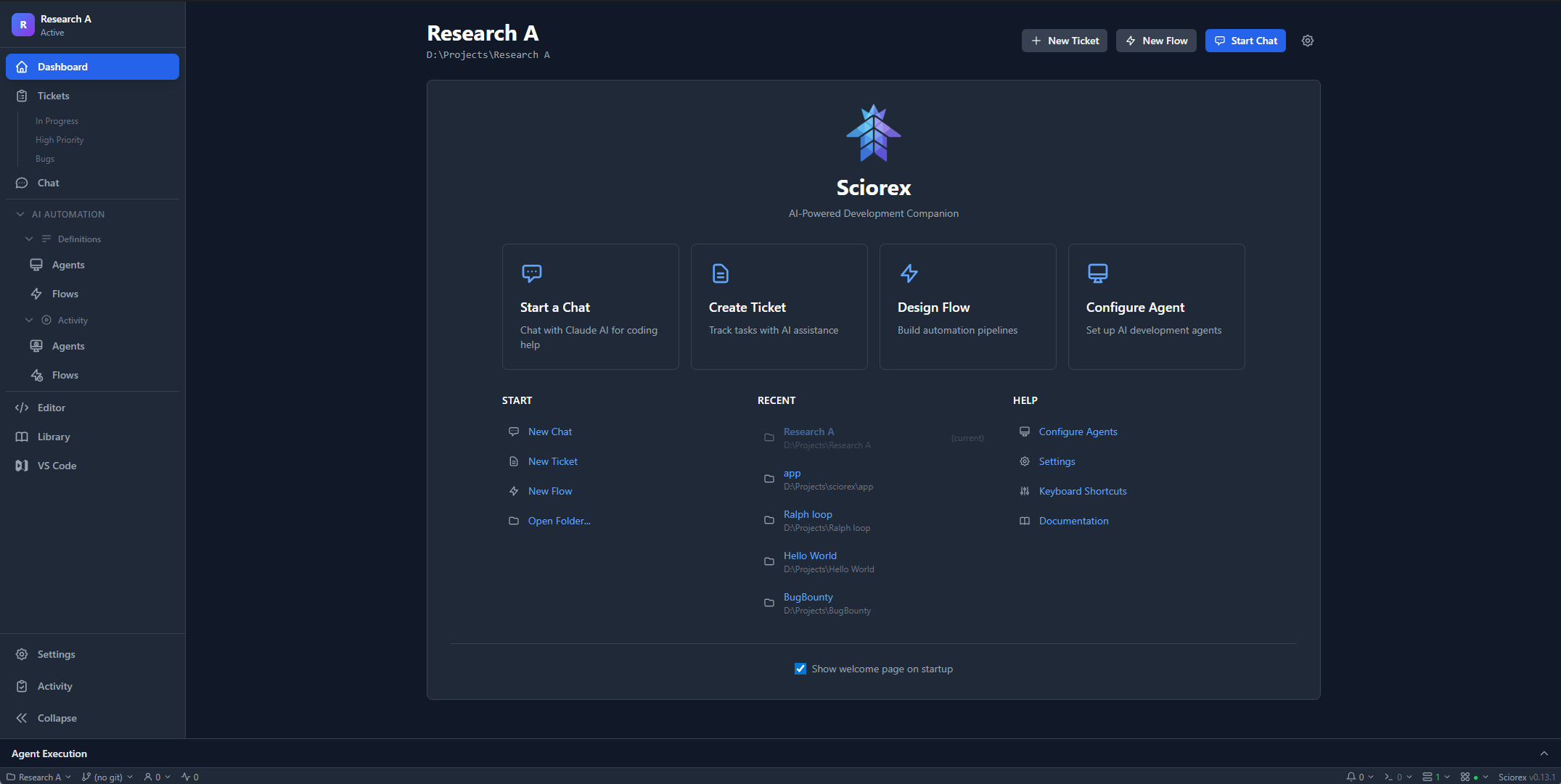
Step 1: Install Sciorex
See the Installation Guide for platform-specific instructions.
Download from the Sciorex website or GitLab Releases.
Step 2: Configure an AI Provider
Sciorex supports 6 AI providers (4 CLI + 2 HTTP). You need at least one:
| Provider | Type | Website | Models |
|---|---|---|---|
| Claude Code | CLI | docs.anthropic.com/en/docs/claude-code | Opus 4.6, Sonnet 5.0, Sonnet 4, Haiku 3.5 |
| Gemini CLI | CLI | github.com/google-gemini/gemini-cli | Gemini 3 Pro, 3 Flash, 2.5 Pro |
| Codex | CLI | github.com/openai/codex | GPT-5.3 Codex, GPT-4.1, o4-mini |
| OpenCode | CLI | github.com/opencode-ai/opencode | Multi-provider |
| LM Studio | HTTP | lmstudio.ai | Any compatible local model |
| Ollama | HTTP | ollama.ai | Any compatible local model |
After installing a CLI, launch Sciorex and select your provider in Settings > AI Provider.
Step 3: Start a Conversation
- Open Sciorex
- Click the chat panel (right side)
- Type a message and press Enter
- The AI responds with full access to your workspace via MCP tools
Tip: Use @ mentions to reference files, folders, URLs, git commits, and more (9 mention types).
Step 4: Explore the Research Suite
If you are a researcher or academic:
- LaTeX Editor -- Open or create a
.texfile. The split panel shows a live PDF preview with SyncTeX click-to-navigate. - Reference Library -- Open via the sidebar. Import references from 14 sources (DOI, arXiv, PubMed, Semantic Scholar, etc.) with 43 Zotero-compatible item types.
- PDF Viewer -- Open any PDF to annotate with highlights, notes, rectangles, and text annotations. Export annotations as structured data.
- Citation Network -- Select a paper in your library and explore its citation graph visually.
- Templates -- Start a new paper from 30+ templates (NeurIPS, ICML, CVPR, IEEE, Nature, and more).
Step 5: Try Council Mode
Council Mode enables structured multi-model debate:
- Open Council Mode from the command palette (
Ctrl+Shift+P) - Select 2-5 AI models to participate
- Define the topic or question
- Watch models debate in structured rounds
- Review the synthesized conclusion
This is especially powerful for research methodology decisions, architectural choices, and complex problem-solving.
Step 6: Explore Flows and Automation
The Flow Editor lets you build visual automations:
- Open the Flow Editor from the sidebar
- Drag nodes onto the canvas (9 types: Agent, Trigger, Condition, Wait, Parallel, Merge, Transform, Ticket Action, End)
- Connect nodes to define your workflow
- Run the flow and monitor execution
What's Next?
- Features Overview -- Deep dive into all 14 feature categories
- MCP Protocol -- Learn about the 59 tools across 6 servers
- Architecture -- Understand how Sciorex connects to AI providers
- Changelog -- See what's new in v0.2.0