
Flow Runs
The Flow Runs view shows the execution history of your automated workflows. Track which flows have run, see their results, and debug issues.
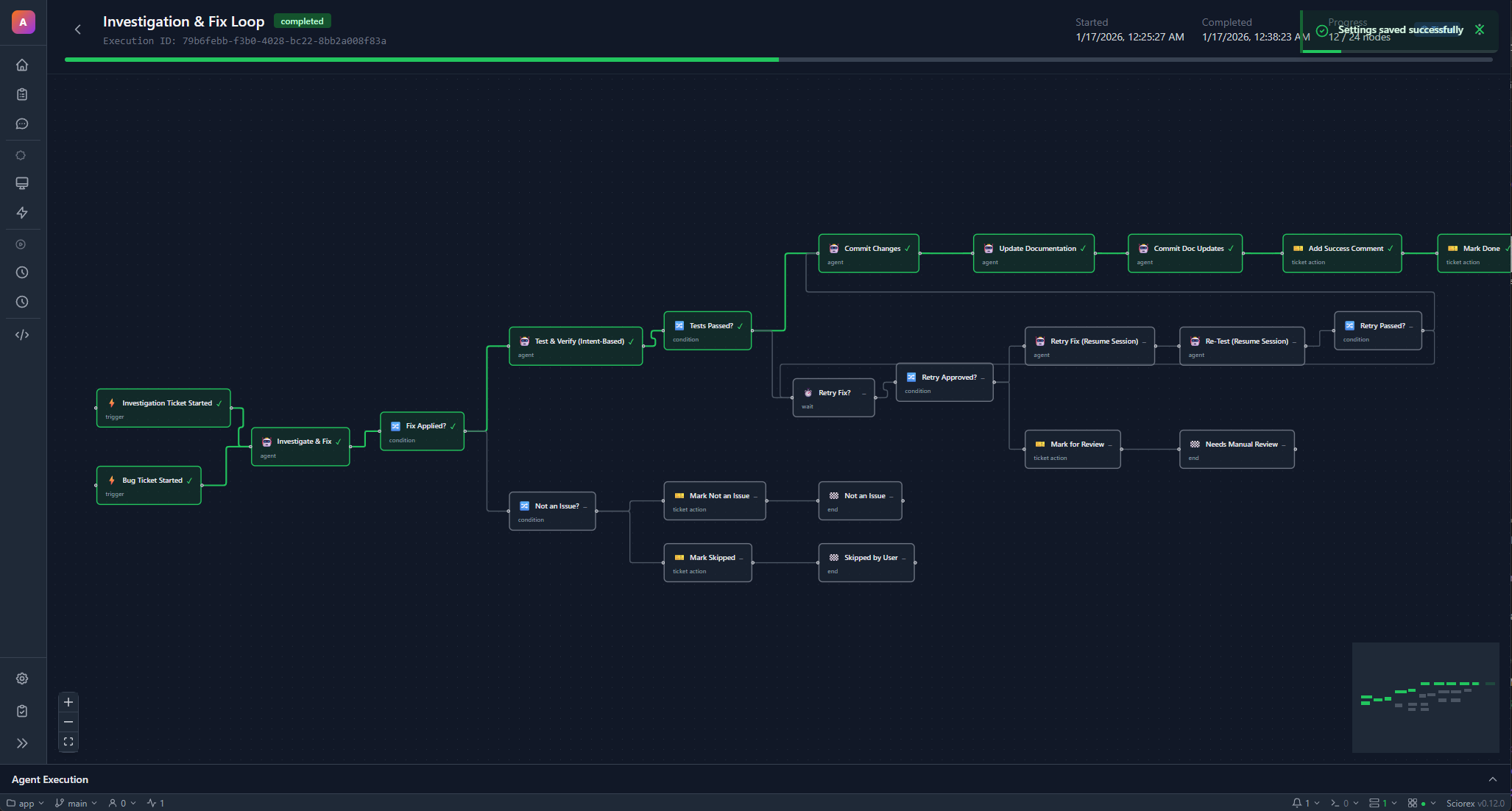
Accessing Flow Runs
Click Flow Runs in the sidebar or press Ctrl+7 to open the view.
Execution List
The main panel shows all flow executions with:
| Column | Description |
|---|---|
| Flow | Which flow ran |
| Status | Current execution state |
| Trigger | What started the flow (Manual, Schedule, Ticket event) |
| Started | When execution began |
| Duration | Total execution time |
| Nodes | Progress indicator (completed/total nodes) |
Execution Statuses
| Status | Meaning |
|---|---|
| Pending | Queued but not started |
| Running | Currently executing |
| Paused | Waiting for user input |
| Completed | Finished successfully |
| Failed | Ended with an error |
| Cancelled | Stopped by user |
Execution Details
Click an execution to view its details:
Execution View
Opens the Flow Execution View showing:
- Visual flow diagram with node status indicators
- Current position highlighting the active node
- Node results for completed nodes
- Error details for failed nodes
Timeline Tab
Shows a chronological list of events:
- Node start/complete times
- Data passed between nodes
- Errors and warnings
- User inputs (for Wait nodes)
Context Tab
Shows the execution context:
- Trigger input data
- Node outputs
- Flow variables
- Current state
Real-time Monitoring
For running flows:
- Node status updates in real-time
- Progress bar shows overall completion
- Active nodes are highlighted
- Errors appear immediately
Flow Controls
While a flow is running:
| Action | Description |
|---|---|
| Pause | Pause at the next safe point |
| Resume | Continue a paused execution |
| Cancel | Stop the execution entirely |
| Inject Data | Provide input to a waiting node |
Filtering
Filter the execution list by:
| Filter | Options |
|---|---|
| Flow | Show executions for a specific flow |
| Status | Filter by status |
| Trigger Type | Manual, Scheduled, Ticket event |
| Time | Today, This Week, This Month, All |
Re-running Flows
To re-run a flow:
- Find a previous execution
- Click Re-run from the options menu
- Optionally modify the trigger input
- The flow starts a new execution
Debug Mode
Enable Debug Mode from the flow toolbar to step through execution node by node:
| Action | Description |
|---|---|
| Step | Execute the next node and pause |
| Continue | Run until the next breakpoint or completion |
| Stop | Cancel the execution |
| Skip | Skip a node and provide mock output |
| Modify Input | Change a node's resolved inputs before execution |
| Modify Output | Change a node's output after execution |
Set breakpoints on specific nodes (before or after execution) to pause and inspect data at each stage. Debug Mode shows resolved inputs, expected next nodes, and actual outputs.
Error Recovery
When a node fails during execution, the flow pauses and presents recovery options:
| Action | Description |
|---|---|
| Retry | Re-execute the failed node |
| Skip | Skip the node and provide mock output to continue |
| Stop | Cancel the entire execution |
This lets you recover from transient failures (API timeouts, rate limits) without restarting the entire flow.
Debugging Failed Flows
When a flow fails:
- Open the execution details
- Find the failed node (marked in red)
- Check the error message and stack trace
- Review the node's input data
- Use Error Recovery to retry or skip the failed node
- Or fix the issue in the flow editor and re-run
Scheduled Flow History
For flows with schedule triggers:
- Each scheduled run appears as a separate execution
- View the pattern of runs over time
- Identify missed executions
- Check for recurring failures
Archived Executions
Completed executions can be archived to keep the list clean. Archived executions are hidden by default but can be shown with a filter toggle. The FlowExecution tracks archived: boolean for this purpose.
Worktree Results
For flows that use worktree isolation, the execution details show merge results when a worktree branch is merged back to the base branch.
Related
- Flow Editor for creating and editing flows
- Flow Execution View for real-time monitoring
- Agents for the agents used in flows