
Understanding Worktrees
Worktrees let you run multiple chat sessions in parallel, each with its own isolated copy of your codebase. This prevents one agent's changes from interfering with another's work.
What is a Worktree?
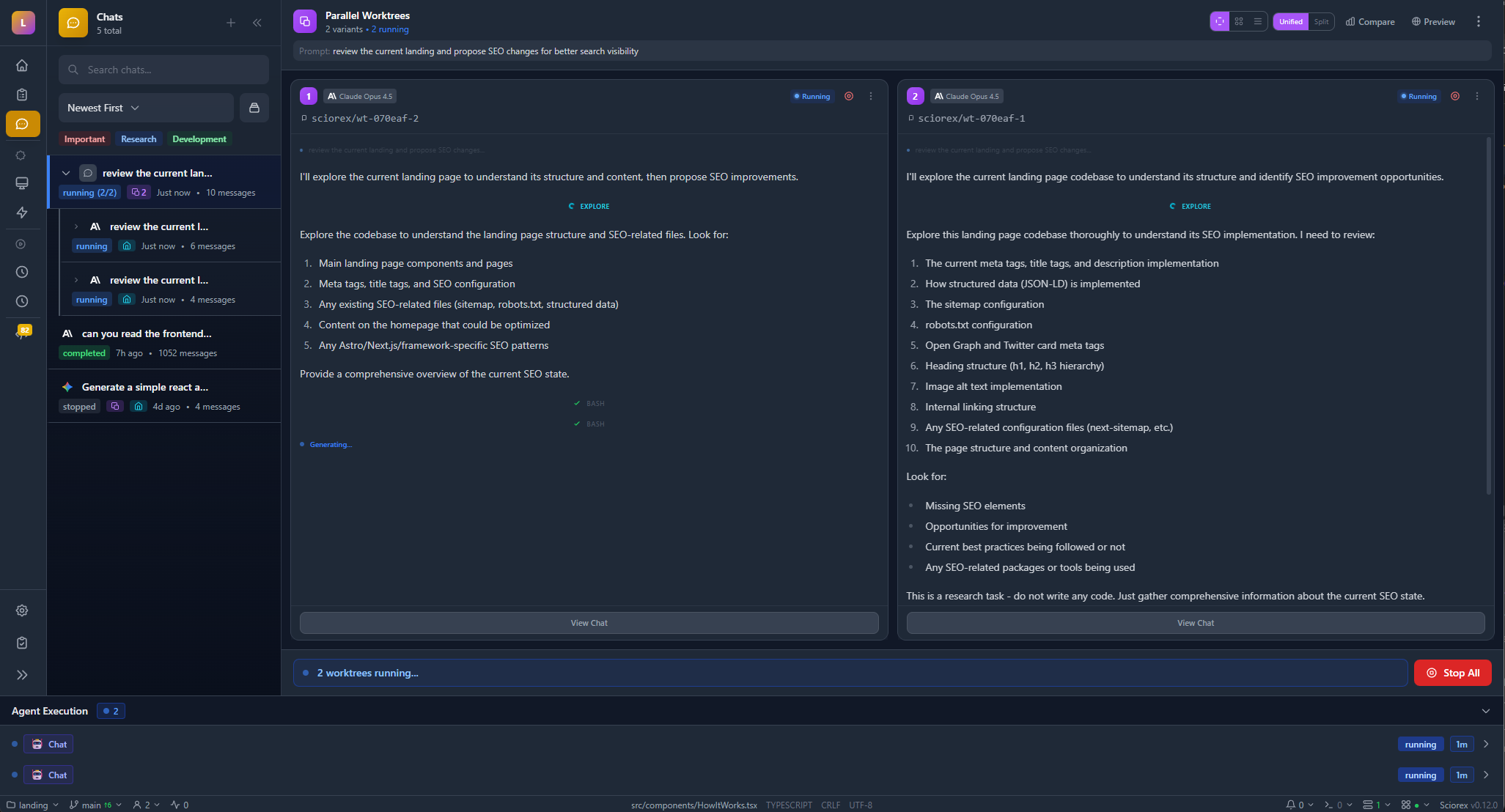
A Git worktree is a separate working directory linked to the same repository. Sciorex uses worktrees to give each parallel chat session its own sandbox:
your-project/              # Main working directory
.sciorex/worktrees/
├── wt-abc123/            # Worktree for Chat Session A
├── wt-def456/            # Worktree for Chat Session B
└── registry.json         # Tracks all worktrees
Each worktree has its own files, so changes in one don't affect the others until you merge them.
Why Use Worktrees?
| Without Worktrees | With Worktrees |
|---|---|
| One chat at a time | Multiple parallel chats |
| Changes can conflict | Each chat has isolated files |
| Must finish one task before starting another | Work on multiple features simultaneously |
| Agent edits affect your main branch | Changes stay in the worktree until merged |
When Worktrees are Created
Sciorex automatically creates a worktree when:
- You start a new chat while another is running
- You branch a conversation to try a different approach
- You explicitly request parallel execution
Managing Worktrees
Viewing Active Worktrees
The worktree indicator in the chat header shows which worktree a session is using. You can also see all worktrees in the multi-worktree dashboard.
Worktree Status
Each worktree has a status:
| Status | Meaning |
|---|---|
| Active | Session is using this worktree |
| Accepted | Changes were merged/accepted |
| Discarded | Changes were discarded |
Merging Changes
When a chat session completes work you want to keep:
- Review the changes in the worktree
- Use Git to merge or cherry-pick the changes to your main branch
- The worktree can then be cleaned up
Multi-Worktree Sessions
A parent session can spawn multiple child sessions, each with its own worktree. The multi-worktree dashboard shows all related sessions and their worktree statuses in a unified view.
Cleaning Up
Worktrees that are no longer needed can be removed. Sciorex tracks worktree usage and can help identify stale ones.
Configuration
Configure worktree behavior in Settings → Worktrees:
| Setting | Description | Default |
|---|---|---|
| Enable Worktrees | Turn worktree support on or off | On |
| Git Path | Path to Git executable | Auto-detect |
| Directory Prefix | Prefix for worktree folder names | wt- |
Disabling Worktrees
If you prefer single-threaded operation, turn off worktrees in settings. Chats will then share your main working directory.
Requirements
Worktrees require:
- Git installed and accessible
- Your project must be a Git repository
- Sufficient disk space for additional working copies
How It Works Internally
- When a parallel session starts, Sciorex runs
git worktree add - The worktree gets a unique directory in
.sciorex/worktrees/ - The session's Claude agent works in that isolated directory
- Changes are committed to a branch in the worktree
- When done, you can merge or discard the branch
Best Practices
Use worktrees for exploration. When you want to try different approaches to a problem, branch the conversation. Each branch gets its own worktree.
Review before merging. Worktree changes are isolated until you merge them. Take time to review what the agent did before bringing changes into your main branch.
Clean up regularly. Old worktrees take disk space. Remove them when you're done with the associated task.
Keep your main branch clean. Let agents experiment in worktrees. Only merge changes you're confident about.
Troubleshooting
Worktree creation fails
Check that:
- Git is installed and in your PATH
- Your project is a Git repository
- You have write permissions to
.sciorex/worktrees/
Changes not appearing
Remember that worktree changes are isolated. Check which worktree the session is using and look for changes there.
Out of disk space
Each worktree is a full copy of your working directory. If disk space is tight, clean up unused worktrees or disable the feature.
Next Steps
- Chat Interface to start parallel sessions
- Settings Reference for all worktree options